Lists
ListView, TableView and TreeView show collections of data.
The example for this page builds as tutorial_07_lists.
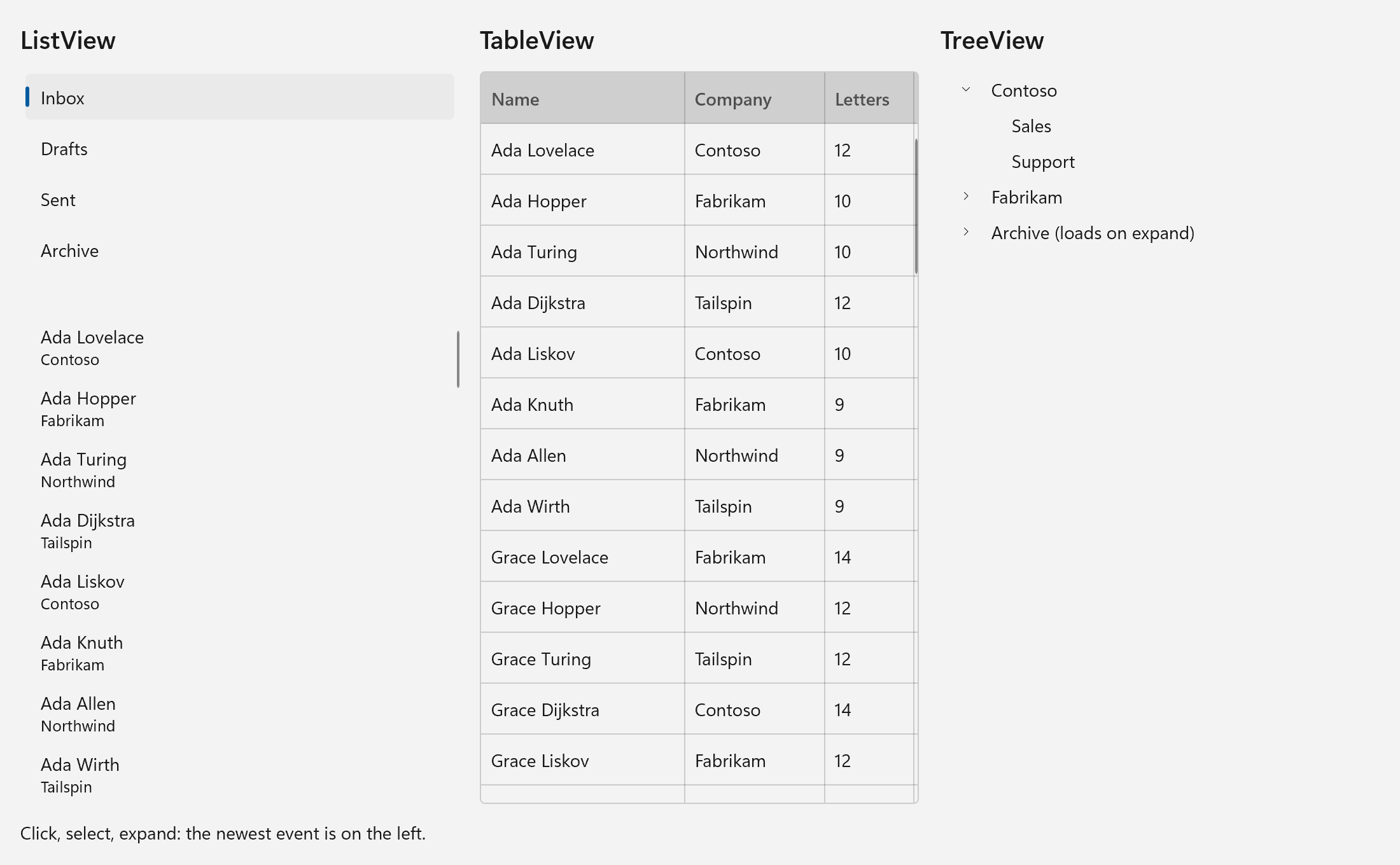
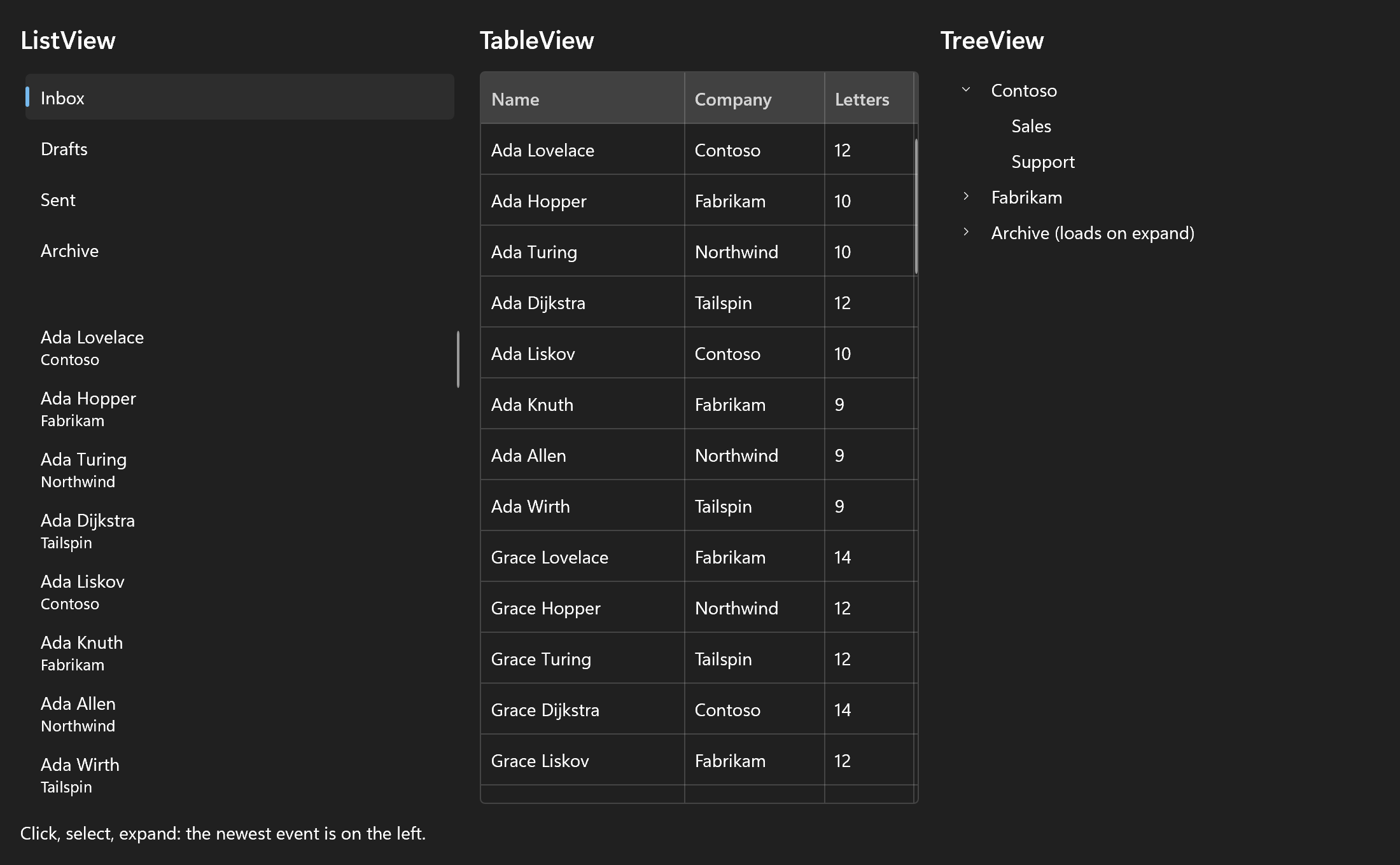
The example for this page puts all three next to each other and writes every event they raise into a status line at the bottom, newest first. The full source is examples/tutorials/07_lists/main.cpp.
ListView
A ListView shows one row per item, scrolls on its own and keeps a selection. It is typed on its item: .items is the collection, .item says how one row looks, and the handlers receive the item they are about.
Strings
The short form is a list of strings in .items, with no template at all:
ui::Spec folders = ui::ListView<std::string>{
    .items                = {"Inbox", "Drafts", "Sent", "Archive"},
    .selected_index       = 0,
    .height               = 180,
    .on_selection_changed = [&](std::optional<std::string> folder)
    { note("folder SelectionChanged " + (folder ? *folder : std::string{"(none)"})); },
};
ui::ListView<std::string> names the item type, since a braced list of literals does not say it. The list copies the strings and owns them from then on. Nothing is selected until the user picks a row or .selected_index names one, so a list that opens with its first row selected sets .selected_index = 0. The field takes a bind() too if the selection should follow a Property<std::optional<std::size_t>>. Unset (std::nullopt) means "nothing selected", which is why the property is optional.
Give a list a height, or put it somewhere that gives it one (a 1_fr grid row, a window). A list in a ui::VerticalStack with no height is measured with unbounded height and grows to fit every row, which defeats the point.
To change a string list later, keep an observer through .control and use the item calls on it: add_item(), insert_item(), remove_item() and move_item(). The selection stays on the items it was on.
Items and a Template
For anything richer than one line of text, give the list your items and a function that builds the row for one of them:
struct Contact
{
    std::string name;
    std::string company;

    // A Property compares before it notifies, so what it holds needs ==.
    friend bool operator==(const Contact&, const Contact&) = default;
};

std::vector<Contact> make_contacts()
{
    const char* first[]     = {"Ada", "Grace", "Alan", "Edsger", "Barbara", "Donald", "Frances", "Niklaus"};
    const char* last[]      = {"Lovelace", "Hopper", "Turing", "Dijkstra", "Liskov", "Knuth", "Allen", "Wirth"};
    const char* companies[] = {"Contoso", "Fabrikam", "Northwind", "Tailspin"};

    std::vector<Contact> contacts;
    for (std::size_t i = 0; i < 8; ++i)
    {
        for (std::size_t j = 0; j < 8; ++j)
        {
            contacts.push_back({std::format("{} {}", first[i], last[j]), companies[(i + j) % 4]});
        }
    }
    return contacts;
}
ui::Spec people = ui::ListView<Contact>{
    .items                = contacts,
    .key                  = &Contact::name,
    .selection_mode       = ui::SelectionMode::Single,
    .on_selection_changed = [&](std::optional<Contact> contact)
    { note("SelectionChanged " + (contact ? contact->name : std::string{"(none)"})); },
    .on_item_click = [&](const Contact& contact) { note("ItemClick " + contact.name); },
    .item          = [](const Contact& contact) -> ui::Spec
    {
        return ui::VerticalStack{
            .margin = ui::Symmetric{.horizontal = 0, .vertical = 6},
            .content =
                {
                    ui::Text{.text = contact.name},
                    ui::Text{.text = contact.company, .role = ui::TextRole::Caption},
                },
        };
    },
};
.item returns a ui::Spec, so a row is written with the same specs as the rest of the window. Here .items is contacts, a ui::Property<std::vector<Contact>>, and the spec names its item type, ui::ListView<Contact>. C++ works out a spec's type only from the field's own type, which a Property is not, so a view always names it. .items takes three sources:
| Source | The list |
|---|---|
A ui::Property<std::vector<T>> |
Follows the property. With .key, a sort or a filter keeps the selection on its item. |
A ui::ObservableVector<T> |
Follows every insert, removal and move, see A Todo List. |
A plain std::vector<T> or a braced list |
Copies it once. |
.key says what makes two contacts the same contact when the vector is replaced, here the name. Leave it out and the list still follows the property, but a reorder then looks like a new set of rows and the selection goes.
The template does not run once per item. It runs for the rows that are on screen, when they come into view, and again when a row scrolls out and back in. So it has to be cheap and it must not keep state in the row. A row can be destroyed and rebuilt at any time, and whatever you keep there is gone. Keep state in your model and derive the row from it.
Rows size to their content unless .item_height fixes them. The minimum is 40 DIPs.
.selection_mode picks the selection model:
| Mode | Gesture |
|---|---|
None |
Nothing can be selected. Use it with .on_item_click for a list of actions. |
Single |
A click selects one item. The default. |
Multiple |
Each row gets a check box; a click toggles it. |
Extended |
A click selects one, Ctrl+click toggles, Shift+click selects a range. |
The list is one tab stop, with the focus ring on the current item. The arrow keys move that item. In Extended mode the selection moves with it (Shift extends, Ctrl moves focus only), and in Single mode too, as long as single_selection_follows_focus() is on. Ctrl+A selects everything in Multiple and Extended, or clears the selection when everything already is selected.
When the model changes, there is nothing to announce. Assign the property, or edit the ObservableVector, and the list follows, keeps the selection on the right items and plays the item transitions if you set any. With drag reordering on (.can_reorder_items), the list writes the new order back into the bound collection.
The control itself stays index-based. Through .control, an item is its position: selected_index(), scroll_into_view(i). If you drive a control without a spec, set_item_count() and the notify_inserted(), notify_removed(), notify_replaced() and notify_moved() calls are what the spec uses underneath.
ui::ListView also files its items under group headers by a key (.group_by, .group_header_template, sticky by default), has a header and footer that scroll with the items, and drag reordering (.can_reorder_items). ui::TileView and ui::TableView group the same way. The ListView reference lists them all.
TableView
A TableView is a table: a header strip over rows of cells, which the user can sort, resize, group and, if you allow it, edit.
ui::Spec table = ui::TableView<Contact>{
    .items = contacts,
    .columns =
        {
            {.header = "Name", .width = 160, .text = [](const Contact& contact) { return contact.name; }},
            {.header = "Company", .width = 110, .text = [](const Contact& contact) { return contact.company; }},
            {.header = "Letters",
             .width  = 70,
             .text   = [](const Contact& contact) { return std::format("{}", contact.name.size()); }},
        },
    .on_selection_changed = [&](std::optional<Contact> contact)
    { note("TableView " + (contact ? contact->name : std::string{"(none)"})); },
};
.items is the same collection the list shows, one table row per item. .columns gives each column a caption, a width and a function returning the cell text for an item. The user can sort by clicking a header and resize columns by dragging their edges, and neither changes your collection. The body is virtualized like a ListView. Columns can also hold templated cells, rows can be edited in place and grouped under collapsible headers, all described in the TableView reference.
TreeView
A TreeView shows a hierarchy of expandable rows. Like the other views it shows your data, and your data is the model. Here the items are ui::TreeNode, the ready-made item, held in a property:
ui::Property<std::vector<ui::TreeNode>> org{std::vector<ui::TreeNode>{
    {.text = "Contoso", .children = {{.text = "Sales"}, {.text = "Support"}}, .expanded = true},
    {.text = "Fabrikam", .children = {{.text = "Research"}, {.text = "Legal"}}},
    {.text = "Archive (loads on expand)", .has_children = true},
}};

ui::Spec tree = ui::TreeView<ui::TreeNode>{
    .items                = org,
    .on_selection_changed = [&](std::optional<ui::TreeNode> node)
    { note("TreeView selected " + (node ? node->text : std::string{"(none)"})); },
    .on_item_invoked = [&](const ui::TreeNode& node) { note("TreeView invoked " + node.text); },
    .on_expanding =
        [&](const ui::TreeNode& node)
    {
        if (!node.has_children || !node.children.empty())
        {
            return; // already loaded
        }
        // The data is the model: load the children into it, and the row opens with them.
        org.update(
            [&](std::vector<ui::TreeNode>& roots)
            {
                for (ui::TreeNode& root : roots)
                {
                    if (root.text == node.text)
                    {
                        for (int year = 2021; year <= 2025; ++year)
                        {
                            root.children.push_back({.text = std::format("{}", year)});
                        }
                    }
                }
            });
        note("TreeView loaded " + node.text);
    },
};
A TreeNode has a text, its children (by value), a key, whether it starts expanded, and has_children. The tree draws the rows itself: indentation, chevron, selection indicator. There is one element for the whole tree, not one per node.
What the tree keeps is only what the user did: which rows are expanded and which are selected, by each node's key. A node without a key is known by the path of texts from its root. Assign the property a changed tree, a reload or a rename, and the rows with the same keys stay open and selected.
has_children shows a chevron on a node that has no children yet. When the user expands it, .on_expanding runs first. Load the children into the property there, as the example does, and the row opens with them. That is how you load a folder's content only when someone opens it. If the node still has no children afterwards, it stays collapsed.
Your own item type works the same way. Name it, say where its children are and what identifies it, and give it a row:
ui::TreeView<Folder>{
    .items        = folders,              // ui::Property<std::vector<Folder>>
    .children     = &Folder::subfolders,  // or a function returning them
    .key          = &Folder::path,
    .has_children = &Folder::has_subfolders,
    .on_expanding = [&](const Folder& f) { load_into(folders, f.path); },
    .item         = [](const Folder& f) -> ui::Spec { return ui::Text{.text = f.name}; },
}
Its handlers get your items: on_selection_changed a copy of the selected one, on_item_invoked and the others the item itself.
Two things to keep in mind:
- The tree is not virtualized. Every visible row is realized, so keep very large trees collapsed and load them lazily.
- Drag and drop is off by default. Turn on
.can_drag_itemsand.allow_dropwhen the hierarchy is the user's to rearrange: a row dragged onto another row becomes its last child, and.on_drag_items_completedreports the move. With a member.childrenand a bound property, the moved tree is written back into the property.
The tree is a single tab stop. Up and Down move between rows, Left and Right collapse, expand or step to the parent and first child, Enter invokes.
All four controls go into one grid. The two lists share the first column, the string list in an AutoSize row, the contacts in the 1_fr row below it, which gives them their height:
// The first column holds both lists, in a grid of their own.
ui::Spec lists = ui::Grid{
    .rows        = {ui::AutoSize, 1_fr},
    .row_spacing = 12,
    .content = {ui::Cell{.row = 0, .content = std::move(folders)}, ui::Cell{.row = 1, .content = std::move(people)}},
};
auto heading = [](const char* text) { return ui::Text{.text = text, .role = ui::TextRole::Subtitle}; };

window.set_content(ui::Grid{
    .columns        = {1_fr, 1_fr, 1_fr},
    .rows           = {ui::AutoSize, 1_fr, ui::AutoSize},
    .row_spacing    = 12,
    .column_spacing = 16,
    .margin         = 16,
    .content =
        {
            ui::Cell{.row = 0, .column = 0, .content = heading("ListView")},
            ui::Cell{.row = 0, .column = 1, .content = heading("TableView")},
            ui::Cell{.row = 0, .column = 2, .content = heading("TreeView")},
            ui::Cell{.row = 1, .column = 0, .content = std::move(lists)},
            ui::Cell{.row = 1, .column = 1, .content = std::move(table)},
            ui::Cell{.row = 1, .column = 2, .content = std::move(tree)},
            ui::Cell{.row = 2, .column = 0, .column_span = 3, .content = ui::Text{.text = events}},
        },
});
Selection and Item Callbacks
Run the example and click around while watching the status line. The item and selection handlers per control, of which the example logs the selection, click, invoke and expanding ones:
| Control | Handler | Fires when |
|---|---|---|
ListView |
.on_item_click |
A row is clicked, before the click selects. |
ListView |
.on_selection_changed |
The selection actually changed: a click, the keyboard, a bound Property or set_selected_index(). Clicking the row that is already selected raises nothing. |
TableView |
.on_selection_changed |
The selected row changed, by click, keys or a bound write. |
TableView |
.on_cell_edited |
An edit is being committed. Returning ui::Cancel rejects the value. |
TreeView |
.on_item_click |
A row is clicked, before the click selects. |
TreeView |
.on_item_invoked |
A row is opened: double-clicked, or Enter is pressed on it. |
TreeView |
.on_selection_changed |
A node's selection changed: a click, the arrow keys or a check box. |
TreeView |
.on_expanding |
A node is about to open. |
TreeView |
.on_collapsed |
A node has closed. |
So a click on an unselected contact logs ItemClick first and SelectionChanged right after it, and a second click on the same contact logs only ItemClick. Use on_item_invoked for "open this": it fires on Enter and a double-click, and on a single click in a view that selects nothing (SelectionMode::None). Use on_selection_changed for "show the details of whatever is selected", since it also follows the keyboard, and on_item_click for anything that reacts to every click.
Item Data Lifetime
A binding keeps a reference to its property, and the list reads through it for as long as it exists, not only while the window is being set up. So the property has to outlive the window:
// Declared before the window, so everything here outlives it and its tree.
ui::Property<std::vector<Contact>> contacts{make_contacts()};
std::vector<std::string>           recent;
ui::Property<std::string>          events{"Click, select, expand: the newest event is on the left."};

auto note = [&recent, &events](std::string event)
{
    recent.insert(recent.begin(), std::move(event));
    if (recent.size() > 3)
    {
        recent.pop_back();
    }
    std::string line;
    for (const std::string& e : recent)
    {
        line += line.empty() ? e : "  |  " + e;
    }
    events = line;
};
Here that holds because both are locals of main(), declared before the window, so the window and its tree are destroyed first when main() returns. In a larger app the model usually lives in an object that owns the window, or next to it, and the same rule applies: declare the data first, so it is destroyed last.
Who owns what a view is given:
| Source | Who owns it after build |
|---|---|
.items given a vector or a braced list |
The view, which copies it. |
.items given a ui::Property or a ui::ObservableVector |
You. The property or collection must outlive the view, or be destroyed first, which just ends the binding. |
.item and the handlers |
The view stores them, so they must not capture anything that dies before the window. The item reference they receive is only valid during the call, unless the source is an ObservableVector. |
Other Item Controls
The same ideas carry over to the rest of the collection family:
| Control | Use it for |
|---|---|
ui::TileView |
Templated items in wrapping rows of equal cells, such as a photo grid. Same selection, click and drag fields as ListView. |
ui::ForEach |
Turns a collection into children arranged by its .layout, with no selection or chrome of its own, virtualized with .virtualize = true. The building block when none of the above fit. |
| Item Layouts | The arrangements a .layout field takes: ui::StackLayout, ui::TileLayout, ui::WrapLayout and ui::LinedFlowLayout. A ui::LayoutPanel takes them too, for children you write. |
Long Lists looks at what virtualization buys with 100,000 rows.