Dialogs, Flyouts and Menus
Everything that floats above the tree.
The example for this page builds as tutorial_10_dialogs_flyouts_menus.
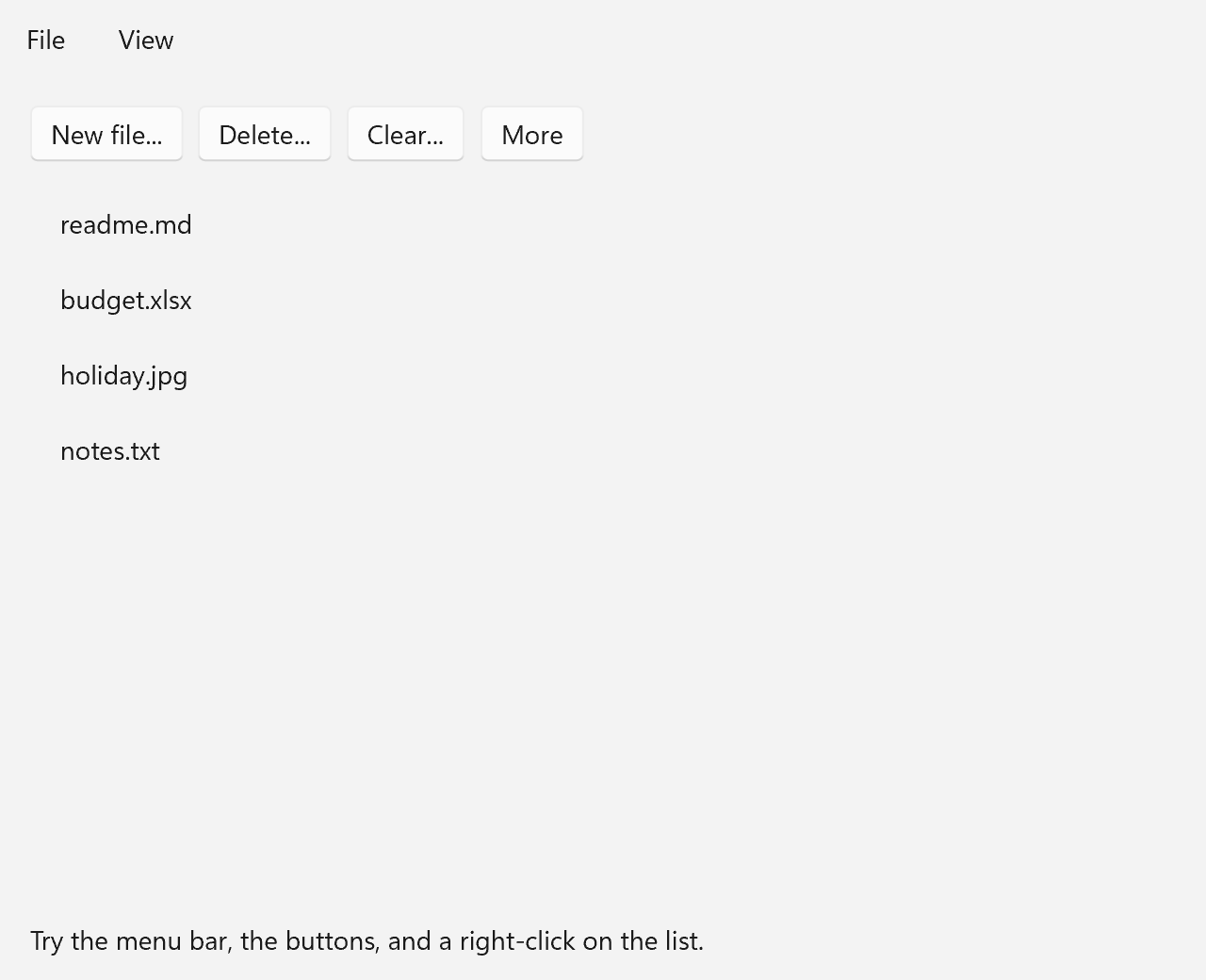
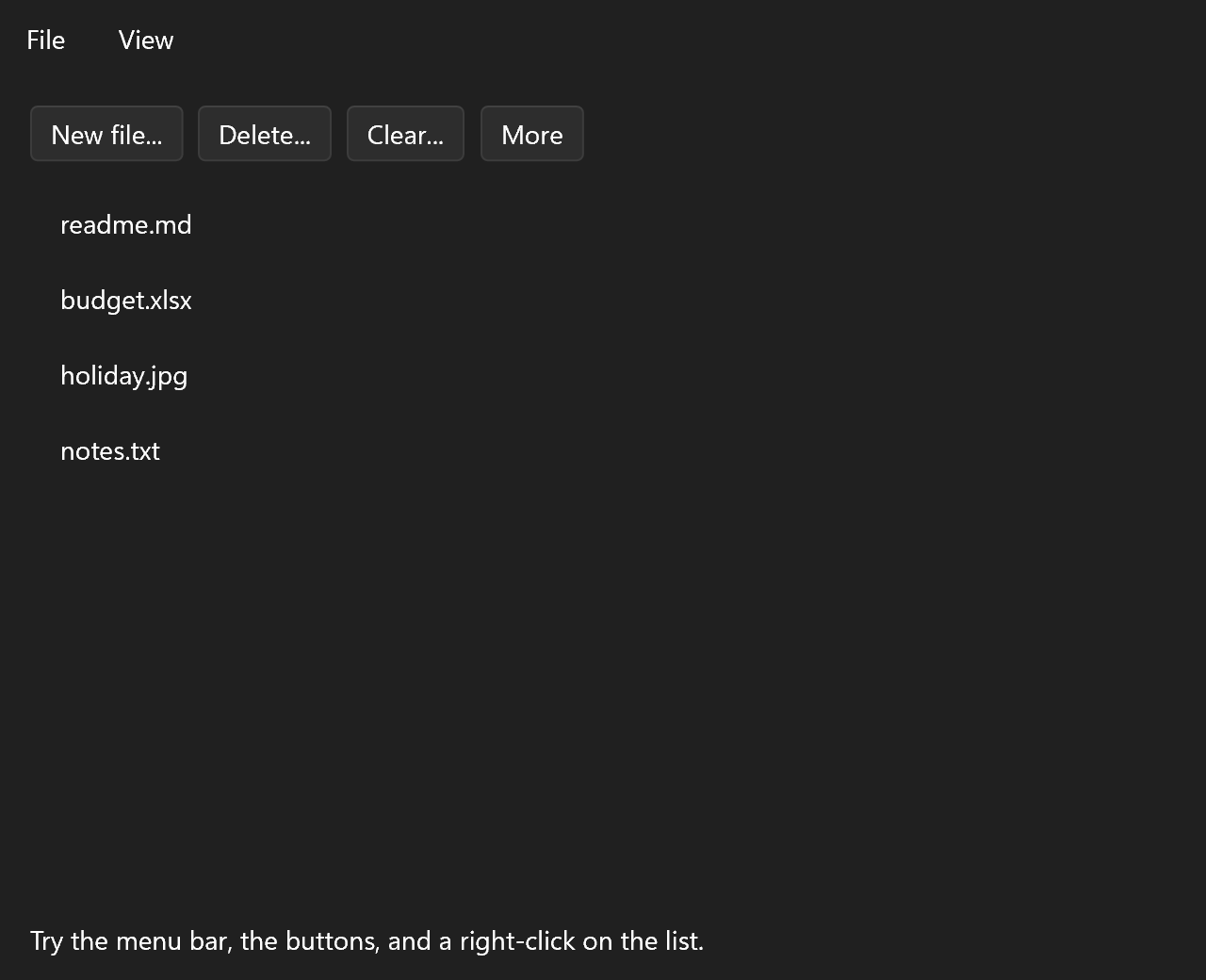
The example is a small file list with a menu bar, a "New file" flyout, a delete button that asks first, a Clear button that waits for its answer in a coroutine, a tooltip, a drop-down menu and a context menu on the list's rows. The full source is examples/tutorials/10_dialogs_flyouts_menus/main.cpp.
ui::Property<std::string>              status{"Try the menu bar, the buttons, and a right-click on the list."};
std::string                            new_name;
ui::Control<ui::ListView<std::string>> files;
ui::Control<ui::Flyout>                new_file;
All of these controls have the same shape. Something sits in the tree where it takes up space: an anchor button, a target, the list. The floating part lives in the window's popup layer, which measures, arranges and draws it separately, above everything else. The ui::Control handles above are how the handlers reach both halves.
Dialog
A dialog is not part of the content tree. You build it when you need it and hand it to Window::show_modal(), which takes ownership:
auto confirm_delete = [&]
{
    const std::optional<std::size_t> index = files->selected_index();
    if (!index)
    {
        status = "Select a file first.";
        return;
    }
    w->show_modal(ui::Dialog{
        .title          = "Delete " + files->items()[*index] + "?",
        .default_button = ui::DialogDefaultButton::Close,
        .primary        = {.text = "Delete"},
        .close          = {.text = "Cancel"},
        .on_closed =
            [&, index](ui::DialogResult result)
        {
            if (result == ui::DialogResult::Primary)
            {
                status = "Deleted " + files->items()[*index];
                files->remove_item(*index);
            }
            else
            {
                status = "Kept it.";
            }
        },
        .content = ui::Text{.text = "The file is gone for good.", .wrapping = ui::TextWrapping::Wrap},
    });
};
ui::Dialog has a .title, a .content and up to three buttons, always laid out Primary, Secondary, Close from left to right. A ui::DialogButton with no .text is left out, so this dialog has two. Each button can have its own .on_click and an .enabled binding, for a Save button that only lights up once the form is valid.
Every button, and Escape, closes the dialog by itself, in two steps:
.on_closinggets aconst ui::DialogClosingArgs&with theresult, and returnsui::Cancelto keep the dialog open, for example while a save is still running. Returning nothing lets it close..on_closedruns once the dialog is closed and gone, with theui::DialogResultthat closed it:Primary,Secondary,Closefor the Close button and Escape, orNonewhen the app closed it withhide()orclose_modal(). It may show the next dialog.
Window::close_modal() closes a dialog from outside, which reports None. A .control observer is valid from show_modal() until the dialog closes.
.default_button picks the accented button, the one Enter clicks. Left unset it is the primary button when there is one. For a destructive action make it Close, so a reflexive Enter cancels.
While a dialog is open it takes all input. Clicks outside it go nowhere, Tab cycles through the dialog's own controls, and when it closes the focus goes back to whatever had it before. Showing a second modal replaces the first.
Waiting for the Answer
When the answer decides what happens next, a coroutine can wait for it with co_await ui::show_dialog(window, spec), which gives the ui::DialogResult. The code after it reads top to bottom, with no .on_closed handler:
// A coroutine waits for the answer and goes on below it. `clear_all` lives as long as main(),
// so capturing by reference is safe.
auto clear_all = [&]() -> ui::FireAndForget
{
    const ui::DialogResult answer = co_await ui::show_dialog(*w,
                                                             ui::Dialog{
                                                                 .title          = "Remove every file?",
                                                                 .default_button = ui::DialogDefaultButton::Close,
                                                                 .primary        = {.text = "Remove all"},
                                                                 .close          = {.text = "Cancel"},
                                                             });
    if (answer != ui::DialogResult::Primary)
    {
        status = "Kept them.";
        co_return;
    }
    while (!files->items().empty())
    {
        files->remove_item(0);
    }
    status = "Removed every file.";
};
ui::Spec clear_button = ui::Button{.text = "Clear...", .on_click = [&] { clear_all(); }};
The coroutine is a ui::FireAndForget, the same type the background work page uses. The spec's own .on_closing and .on_closed still run, and the coroutine goes on in the window's next tick. If the dialog goes without an answer, because another modal replaced it or the window was destroyed, the coroutine never goes on: its frame is destroyed instead, so put cleanup in a destructor.
With MSVC, build the dialog's texts into local variables before the co_await when they come from a function call, such as a std::format() of a string another function returns. MSVC can destroy such a temporary too early inside a co_await expression, and the call that reads it crashes. The background work page has an example.
Flyout
A flyout is an anchor with content that opens next to it:
ui::Spec new_file_button = ui::Flyout{
    .control = new_file,
    .anchor  = ui::Button{.text = "New file..."},
    .content =
        ui::VerticalStack{
            .spacing = 12,
            .content =
                {
                    ui::TextBox{
                        .header           = "Name",
                        .placeholder_text = "notes.txt",
                        .width            = 240,
                        .on_text_changed  = [&](const std::string& text) { new_name = text; },
                    },
                    ui::Button{
                        .text    = "Create",
                        .variant = ui::ButtonVariant::Accent,
                        .on_click =
                            [&]
                        {
                            if (!new_name.empty())
                            {
                                files->add_item(new_name);
                                status = "Created " + new_name;
                            }
                            new_file->hide();
                        },
                    },
                },
        },
};
When the anchor is a ui::Button, a click, Enter or Space opens and closes the flyout by itself. Any other anchor opens it on a click that nothing inside the anchor handled, so a click on a ui::Text or an image opens it while a check box inside the anchor still just toggles. That works by pointer only. For the keyboard, call show(), hide() or toggle() through .control from a handler of its own. The same handle is how the Create button closes the flyout once it is done.
The content is not part of the main tree, so it does not take up room next to the anchor. It sits on a flyout surface of at least 96 by 40 and at most 456 by 758 DIPs, so long text wraps at 456.
While open, the flyout holds keyboard focus: Tab moves inside its content, and when it closes, focus goes back to whatever had it before. Focus stays inside the flyout for as long as it is open, so a pick handler that wants to put focus on a control outside it has to wait: call hide(), and move the focus in .on_closed, which runs once the flyout has closed.
Menu and Context Menus
The Menu Bar
ui::MenuBar is a menu bar, a row of headers each dropping down a menu:
ui::Spec menu_bar = ui::MenuBar{
    .items =
        {
            {.text = "File",
             .items =
                 {
                     {.text = "New", .shortcut = ui::Ctrl + ui::Key::N, .on_click = [&] { status = "File > New"; }},
                     {.text     = "Open...",
                      .shortcut = ui::Ctrl + ui::Key::O,
                      .on_click = [&] { status = "File > Open"; }},
                     ui::MenuItem::separator(),
                     {.text = "Exit", .on_click = [w] { w->close(); }},
                 }},
            {.text = "View",
             .items =
                 {
                     ui::MenuItem::toggle("Word wrap",
                                          false,
                                          [&](bool on) { status = on ? "Word wrap on" : "Word wrap off"; }),
                     ui::MenuItem::sub_item("Sort by",
                                            {
                                                ui::MenuItem::radio("Name", true),
                                                ui::MenuItem::radio("Date"),
                                            }),
                 }},
        },
};
Every entry is a ui::MenuItem. A plain item has .text, .on_click and optionally an .icon and a .shortcut. The factories make the other kinds:
| Factory | Item |
|---|---|
MenuItem::separator() |
A line between groups. |
MenuItem::toggle(text, checked, on_changed) |
A check mark that flips on click. |
MenuItem::radio(text, checked, on_changed) |
One choice out of a group: the radio items next to each other in one list, or every item bound to the same property with ui::selects(). |
MenuItem::sub_item(text, items) |
A cascading submenu. |
A toggle's or radio item's checked is a value, a ui::Property<bool>, or ui::selects(choice, value) for one choice of a ui::Property holding several. An item's text, icon, shortcut and enabled take a property too, and every menu built from the item follows it. Bound, the item shows the property in every menu built from it, and a click writes the new state back before on_changed runs. A radio item unchecked by a click in its group writes false into its own property. A toolbar's ui::AppBarToggleButton binds the same ui::Property<bool> two-way, which keeps it in step with the menu item:
ui::Property<bool> word_wrap{false};

ui::MenuItem::toggle("Word wrap", ui::bind(word_wrap));
ui::AppBarToggleButton{.text = "Word wrap", .checked = word_wrap};
An item's shortcut fires from anywhere in the window, whether the menu is open or not. Ctrl+N works in this example with focus in the list. The shortcut text is shown in the menu's right column.
.on_click runs after the menu has closed, so it may open a dialog or change the tree freely. It is a std::function rather than the ui::Callback every other handler uses: menu items live in a brace-initialized std::vector, and a braced list can only copy its elements. So a menu handler has to be copyable. Capturing references or copyable values is fine. Capturing a std::unique_ptr is not.
A Drop-Down Menu
ui::MenuFlyout is the same kind of menu hung from an anchor:
ui::Spec more_button = ui::MenuFlyout{
    .items =
        {
            {.text = "Select first", .on_click = [&] { files->set_selected_index(0); }},
            {.text = "Select none", .on_click = [&] { files->set_selected_index(std::nullopt); }},
        },
    .placement_alignment = ui::PopupPlacementAlignment::Leading,
    .anchor              = ui::Button{.text = "More", .tool_tip = "Selection shortcuts"},
};
A ui::Button anchor opens it on click, as with ui::Flyout.
A Context Menu
A list gives each of its rows a context menu through .item_context_menu: a function that gets the row's item and returns the menu's entries.
ui::Spec file_list = ui::ListView<std::string>{
    .items             = {"readme.md", "budget.xlsx", "holiday.jpg", "notes.txt"},
    .height            = 240,
    .control           = files,
    .item_context_menu = [&](const std::string&) -> std::vector<ui::MenuItem>
    {
        // The file is selected by the time the menu opens, so both items work on the selection.
        return {
            {.text = "Delete...", .on_click = confirm_delete},
            {.text = "Duplicate",
             .on_click =
                 [&]
             {
                 if (const std::optional<std::size_t> index = files->selected_index())
                 {
                     files->add_item(files->items()[*index] + " (copy)");
                 }
             }},
        };
    },
};
A right-click on a row selects it and opens its menu at the pointer. Shift+F10 or the Menu key opens the menu of the current row. Returning an empty list opens no menu, so some rows can go without one. ui::TileView, ui::TreeView and ui::TableView take the same field.
For any other part of the window, wrap it in a ui::ContextMenu with .items and .content. It opens on a right-click anywhere on the content, focusable or not. For anything the menu cannot express, every element has on_context_requested(), which runs on the same right-click or key and opens what it likes, a MenuFlyout with show_at() for example.
The Delete item reuses confirm_delete, the same lambda the Delete button calls. It can, because it is copyable.
ToolTip
For plain text, every spec has a .tool_tip field, as the More button above uses, and every element has set_tool_tip(). When the tip needs its own content or placement, wrap the anchor in a ui::ToolTip:
ui::Spec delete_button = ui::ToolTip{
    .placement = ui::PopupPlacement::Below,
    .anchor    = ui::Button{.text = "Delete...", .on_click = confirm_delete},
    .content   = ui::Text{.text = "Asks first. Enter picks Cancel."},
};
The anchor takes the tooltip's place in the layout and gets input as usual. The tip shows after the pointer has rested on the anchor for .delay (800 ms by default), and hides on a press, a key, or the pointer leaving.
Do Not Wrap a Flyout Anchor in a ToolTip
A ui::ToolTip around a ui::Flyout (or a ui::MenuFlyout) hides the flyout from the window's popup layer, and it never opens. Give the anchor button its own .tool_tip instead, as the More button does.
The finished layout:
window.set_content(ui::
                       Grid{
                           .rows = {ui::AutoSize, 1_fr, ui::AutoSize},
                           .content =
                               {
                                   ui::Cell{.row = 0, .content = std::move(menu_bar)},
                                   ui::
                                       Cell{
                                           .row = 1,
                                           .content =
                                               ui::
                                                   VerticalStack{
                                                       .spacing = 12,
                                                       .margin  = 16,
                                                       .content =
                                                           {
                                                               ui::HorizontalStack{
                                                                   .spacing = 8,
                                                                   .content = {std::move(new_file_button), std::move(delete_button), std::move(clear_button), std::move(more_button)},
                                                               },
                                                               std::move(file_list),
                                                           },
                                                   }},
                                   ui::Cell{.row = 2,
                                            .content = ui::Text{.text = status,
                                                                .margin = ui::Edges{.left = 16, .top = 8, .right = 16, .bottom = 12}}},
                               },
                       });
Placement and Dismissal
ui::PopupPlacement has four values: Below, Above, Left and Right. What they are relative to depends on the control:
| Control | Placed against | Default | When there is no room |
|---|---|---|---|
ui::Flyout, ui::MenuFlyout |
The anchor, centered across the placement axis, 4 DIPs off it | Below |
Flips to the opposite side. |
ui::CommandBarFlyout |
The same | Above |
Flips to the opposite side. |
ui::TeachingTip |
Its .target, or the window without one |
Above the target, the bottom of the window | Tries the opposite side, then the other axis. |
show_at(point) |
Its top-left corner at the point | Moved left and up only as far as the window edge demands. | |
ui::ToolTip |
The pointer, or .placement_rect in the anchor's coordinates |
Above |
|
ui::Popup |
Its own position plus .horizontal_offset and .vertical_offset |
Clipped at the window edge, not moved. |
The flyouts and the teaching tip also take .placement_alignment (Center, Leading or Trailing) for how it lines up with the anchor along that side. The More menu uses Leading, so it hangs from the button's left edge like a normal drop-down. A teaching tip keeps its tail on the target, so Leading runs the card right from the tail and Trailing left.
Dismissal differs as much as placement:
| Control | Closes on |
|---|---|
ui::Dialog |
Only its buttons and Escape, which reports Close. Clicks outside are swallowed. |
ui::Flyout, ui::MenuFlyout, ui::CommandBarFlyout |
A click outside or Escape while .light_dismiss is on (the default), is_open becoming false, hide(), or invoking an item or command in it. |
ui::TeachingTip |
Its close button, is_open becoming false, and with .light_dismiss = true a click outside or Escape. |
ui::ToolTip |
A press, a key, or the pointer leaving the anchor. |
ui::Popup |
is_open becoming false. With .light_dismiss = true, also a click outside or Escape; .on_closed then tells you, so a bound is_open can follow. |
The flyouts and the teaching tip share one set of open-state fields. .is_open is two-way with a bound property. .on_opened runs as it opens. .on_closing gets a ui::PopupClosingArgs with the reason before it closes, and returning ui::Cancel keeps it open. .on_closed gets the ui::PopupCloseReason once it has closed: Programmatic, LightDismiss, Invoked for a menu item or command, or CloseButton for a teaching tip.
One thing floats above all of these: a hosted native window. A real child HWND is drawn by the OS on top of the framework's surface, so a flyout that opens over one is hidden behind it. Hosting Native Controls explains why.